
To assist with sending user invites to sign up for Pulsara and configuring the mobile app to log in with an external identity provider (IDP), QR Codes can be generated by admins to share with your team.
External IDP QR Codes
Federated authentication login to Pulsara through an external IDP provides a single digital identity that unlocks your access to different services used by your organization (including the Pulsara system) and authenticates you without needing additional passwords.
Note: In order to log into Pulsara after configuring Pulsara with an External IDP, the user will still need a valid Pulsara account created and to be a valid user within your internal identity provider
To configure the Pulsara Mobile app using a QR code:
1. Log in to Pulsara Web: https://us-app.pulsara.com/user/login
2. Navigate to Hospital or EMS and select Identity providers
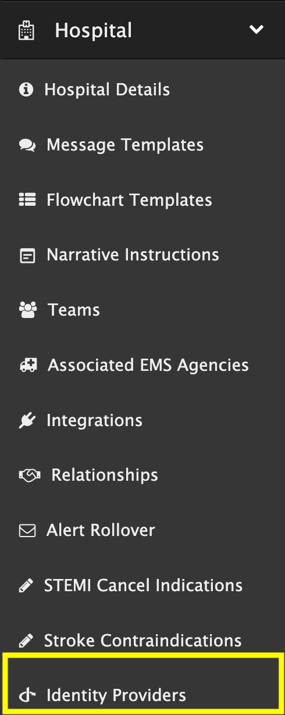
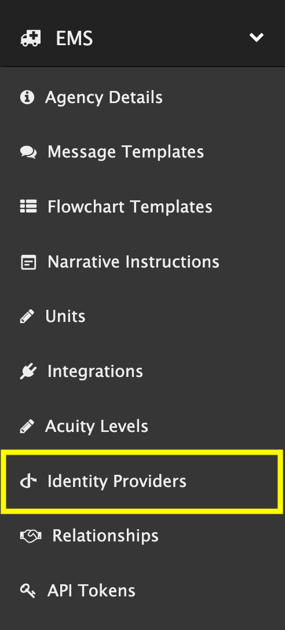
3. Generate and share the QR Code with your team.
Note: A mobile configuration link can also be provided to configure Pulsara Mobile by clicking the clipboard icon.
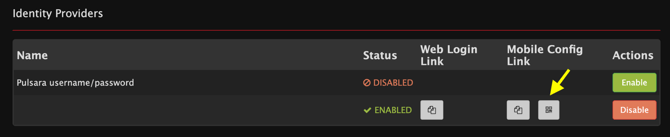
For steps on how to log in via Federated Authentication, check out the KB: Federated Authentication Mobile Log In
Account Sign-Up QR Codes
Account Sign-Up QR Codes can be created for faster sign-up processes for your team.
To generate a QR code as an admin to share with your team:
1. Log in to Pulsara Web: https://us-app.pulsara.com/user/login
2. Navigate to Users and select Signup Links
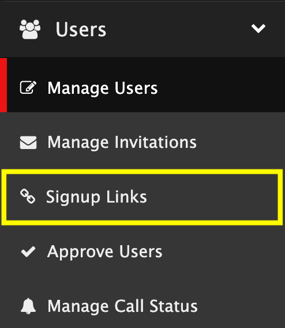
3. Click +Create Signup Link, configure the team and dates, and generate the QR code using the icon in the table. For a more detailed KB regarding Signup Links, visit: User Account Signup Links
4. Using the Code: Share the generated QR code or copy the sign-up link with your team. When scanned or opened, users are guided through creating their account.
5. Approving Requests: Once team members submit their sign-up information, admins must review and approve their requests by navigating to Users > Approve Users in Pulsara Web.