
Pulsara Intelligence is designed to streamline clinical workflows by reducing the burden of manual data entry. By automatically extracting critical information from patient narratives, care teams can more rapidly create patient channels. Increased patient data supports better process Quality Assurance (QA) and facilitates consumption by integration partners, such as Electronic Patient Care Record (EPCR) systems.
Voice Dictation for Pulsara Intelligence
Enabling Pulsara Intelligence
Creating a Patient with Pulsara Intelligence
Available Fields for Pulsara Intelligence
Voice Dictation for Pulsara Intelligence
Note: Pulsara Intelligence is available for Pulsara Mobile on iOS and Android from the new patient creation and not on already created or active patient channels.
Though not required, Pulsara Intelligence works more seamlessly if your mobile device is configured to allow input of Narrative / Notes using your voice.
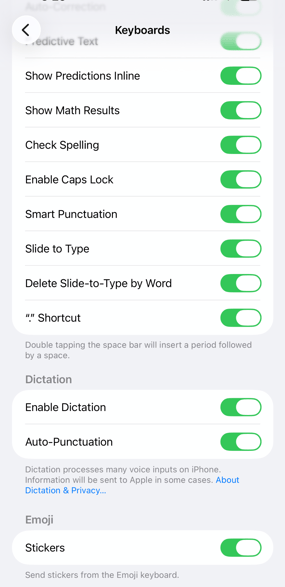
For iOS devices, dictation in your device settings must be enabled to use Pulsara Intelligence for speech-to-text. Navigate to Device Settings > General > Keyboard > Enable Dictation.
If dictation is not allowed on devices, Pulsara Intelligence can be used by typing into the Narrative / Notes field.
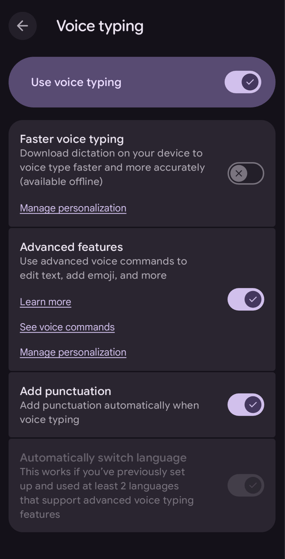
For Android devices, Voice typing in your device settings must be enabled to use Pulsara Intelligence for speech-to-text. Navigate to Device Settings > System > Languages & input > On-screen keyboard > Gboard > Tap Voice typing > Ensure the toggle for Use voice typing is turned ON.
Enabling Pulsara Intelligence
To enable Pulsara Intelligence as an admin, navigate to Hospital / Agency details in Pulsara Manager.
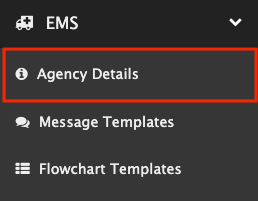
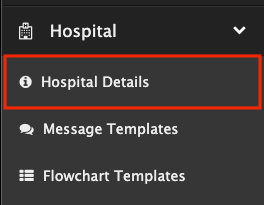
Select Edit

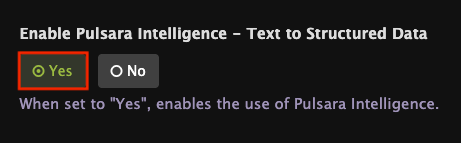
Change Enable Pulsara Intelligence - Text to Structured Data to YES.
Creating a Patient with Pulsara Intelligence
Note: Pulsara Intelligence must be enabled by an organization's administrator before the ability to use Pulsara Intelligence will appear.
Pulsara Intelligence in +Add Button
Start a New Patient Channel.
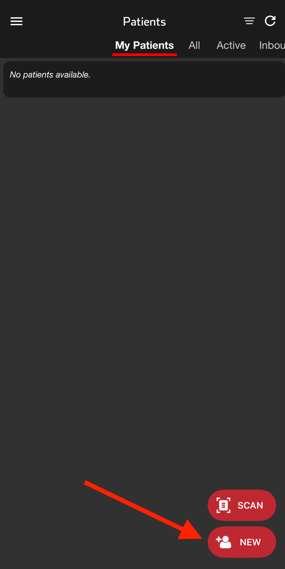
Select the +Add button.
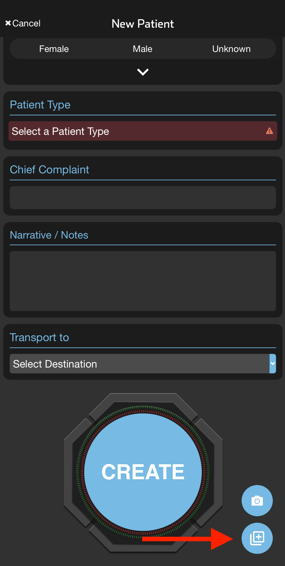
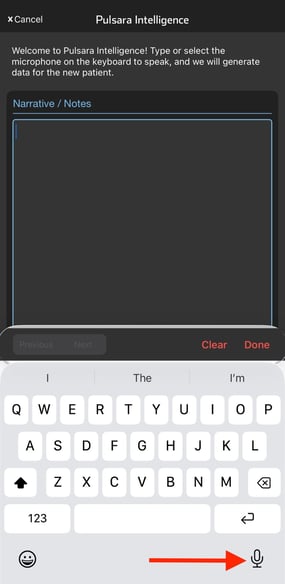
Type or use voice-to-text to input the Narrative / Notes by selecting the Keyboard Dictation Microphone.
Note: Pulsara Intelligence can extract Chief Complaint if it is present in the Narrative / Note and is explicitly called out using text like "Chief Complaint <chief complaint for patient>", "Chief Complaint is", "Complains of", "Reports”.
Note: To add a Triage Condition: Say or Type (Condition, Triage, Triage Color, or Tag) with one of the following colors (white, green, yellow, red, black)
Select Generate.
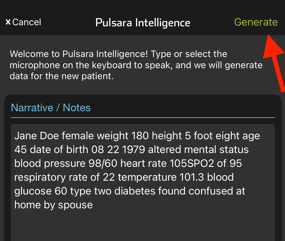
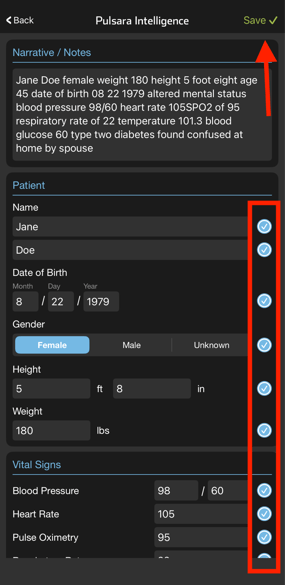
Review and refine the suggestions: Recognized fields will be populated based on the Narrative / Note field contents. Tap into any field to edit the suggestions or use the checkmarks to omit specific suggestions. Once finalized, select Save to add the data to the new patient screen.
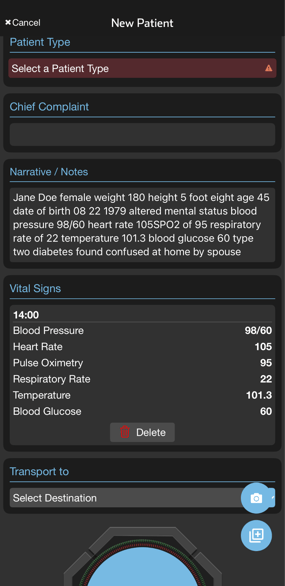
The saved suggestions will be populated into the appropriate fields on the new patient screen.
Pulsara Intelligence in Narrative / Notes
To use Pulsara Intelligence directly from Narrative Note:
Start a New Patient Channel.
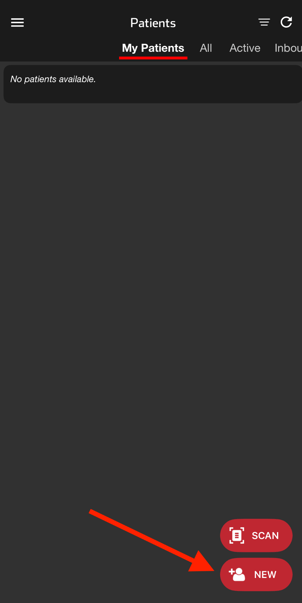
Navigate to Narrative / Notes and select the Keyboard Dictation Microphone.
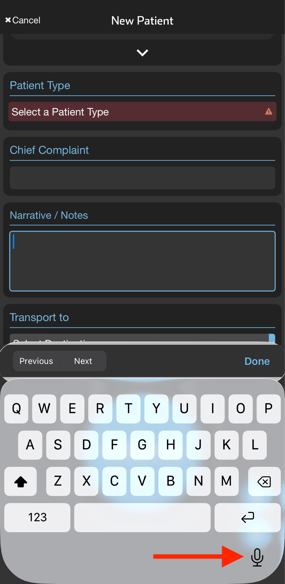
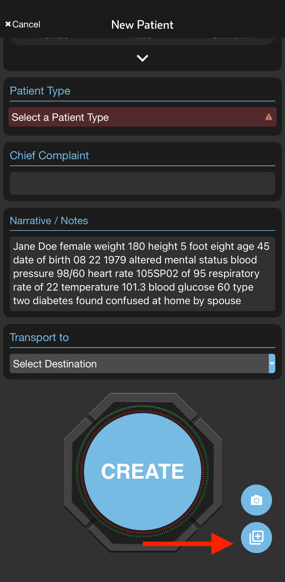
Type or audibly report the Narrative / Notes and select the +Add Button.
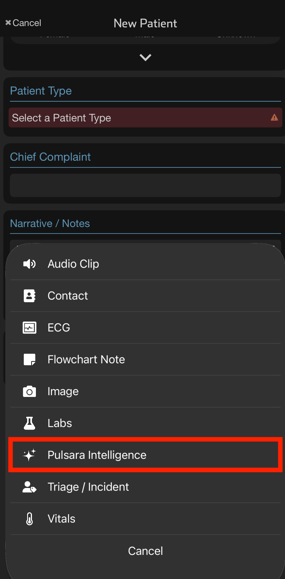
Select Pulsara Intelligence.
Available Fields for Pulsara Intelligence
The following fields can be extracted and will be suggested if they appear in the patient Narrative / Note.
Patient Demographics
- First Name
- Last Name
- Chief Complaint
- Note: To add Chief Complaint, it must be explicitly called out using verbiage such as "Chief Complaint", "Chief Complaint is", "Complains of", "Reports").
- Age OR Date of Birth
- Gender
- Height
- Weight
- Triage Condition
- Note: To add a Triage Condition: Say or Type (“Condition”, “Triage”, “Triage Color”, or “Tag”) with one of the following colors (“white”, “green”, “yellow”, “red”, “black”)
- Could be White, Green, Yellow, Red or Black
- Vitals
- Blood Pressure
- Heart Rate
- Pulse Oximetry
- Respiratory Rate
- EtCO2
- Total GCS
- Temperature
- Blood Glucose