
Patient visibility in the Mobile and Web Patient list is determined by individual user permissions and team patient types for Hospital users.
Pulsara Mobile
Hospital Users
By default, all hospital users see all patients at their facility for the patient types that their team has enabled. To modify a user’s access levels, review Editing Account Details.
The patient list by default will display “My Patients” that were created within the last day.
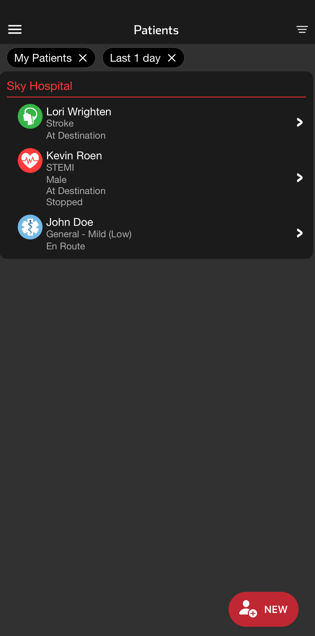
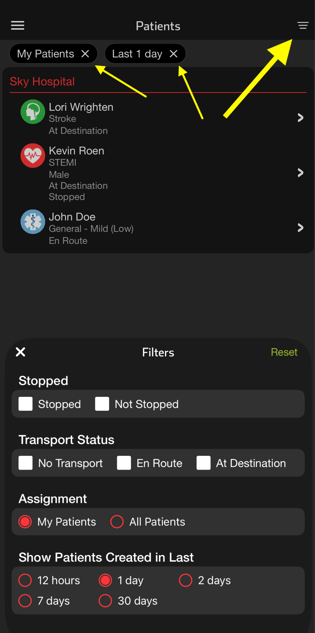
To edit filters, tap the three bars in the upper-right-hand corner.
Note: Once filters are edited, the filters will persist for that user.
Optionally, edit the list based on stopped status, transport status/type, and creation time.
Both active and stopped patients can be filtered to patients created in the last 12 hours, 1 day, 2 days, 7 days, or 30 days.
To remove filters, select the x next to the filter icons at the top of the patient list or uncheck the filter in the filter menu.
Note: If a user’s permissions are set to be able to view only their patients, the assignment filter option will not appear.
EMS Users
By default, EMS Admins can see all patients, while EMS Users are restricted to viewing only their patients. To modify a user’s access levels, review Editing Account Details.
The patient list by default will display “My Patients” that were created within the last day.
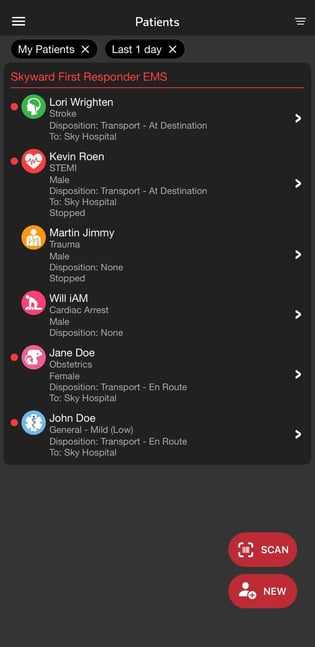
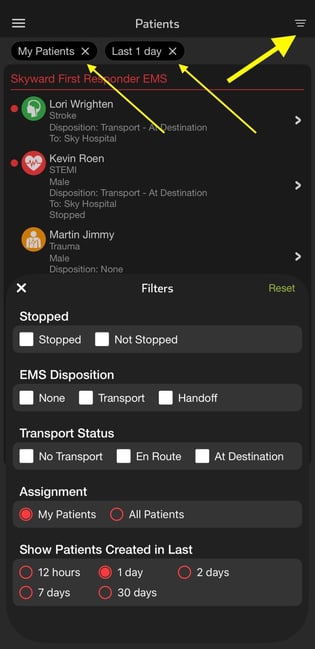
To edit filters, tap the three bars in the upper-right-hand corner.
Note: Once filters are edited, the filters will persist for that user.
Optionally, edit the list based on stopped status, transport status, EMS disposition and creation time.
Both active and stopped patients can be filtered to patients created in the last 12 hours, 1 day, 2 days, 7 days, or 30 days.
To remove filters, select the x next to the filter icons at the top of the patient list or uncheck the filter in the filter menu.
Note: If a user’s permissions are set to be able to view only their patients, the assignment filter option will not appear.
Pulsara Web
Hospital Users
By default, all hospital users see all patients at their facility for the patient types that their team has enabled. To modify a user’s access levels, review Editing Account Details.
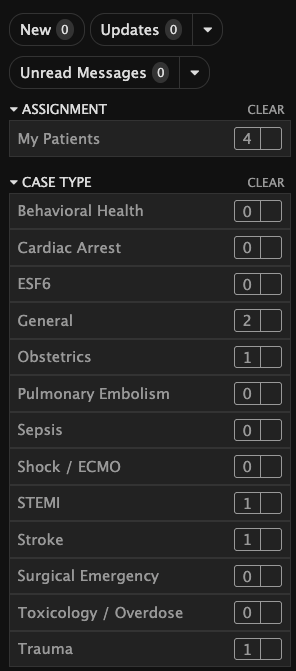
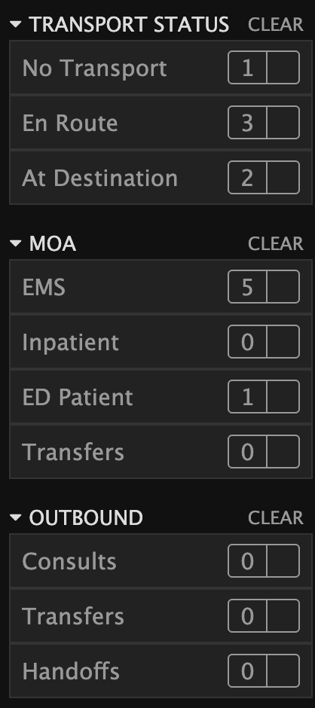
The patient list can be filtered by Assignment, Case Type, Case Stopped, Transport Status, MOA, Consults, Transfers and Handoffs, Triage Condition, Test Status, New, and Create Date. Additionally, patients can be filtered to indicate any patients with Updates or Unread Messages.
The New patient chip blinks any time there is a patient in the list that you have not acknowledged and displays the number of new patients. Click the indicator to filter the list down to only new patients.
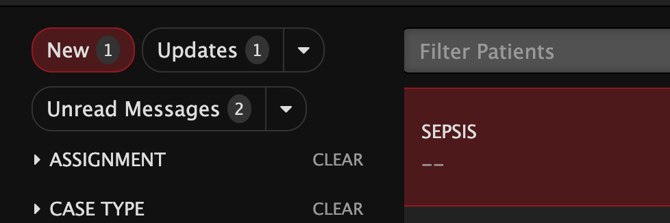
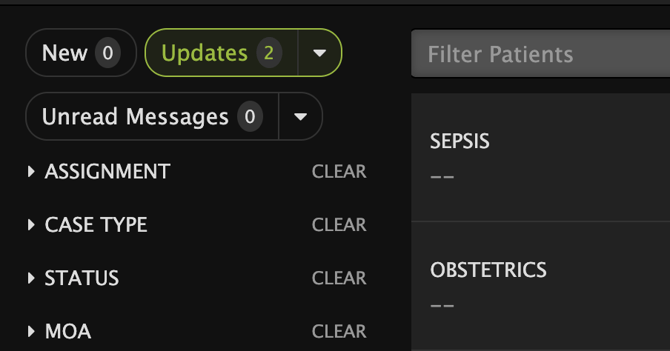
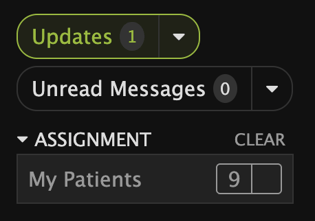
The Updates chip shows the number of patients with updates that you have not seen. When clicking on the chip it displays green and filters the patient list down to show only the patients with updates.
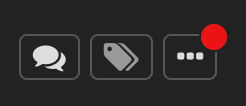
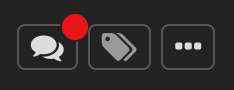
When a patient has an update, the patient details (“...”) button in the corresponding patient row appears with a red badge.
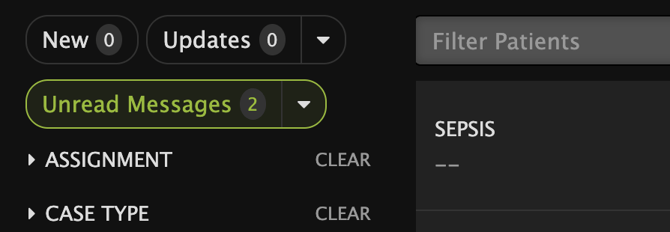
The Unread Messages chip shows the number of patients that have messages that you have not read. Click the indicator to filter the list of patients to display only those with unread messages.
When a patient has a message that you have not read, the new Conversation icon appears with a red badge.
Assignment and Case Type
Transport Status, MOA and Request Type
Triage Condition and Test Status
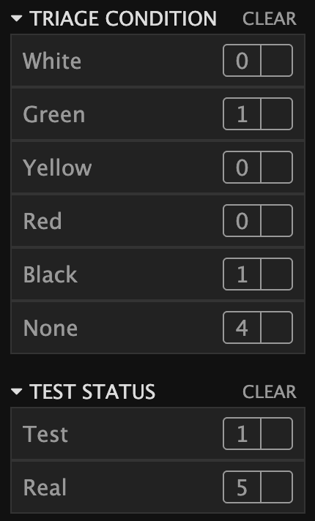
Filters can be mixed and matched to find the exact results of the patients you need. Only patients that match all active filters will be shown in the dashboard.
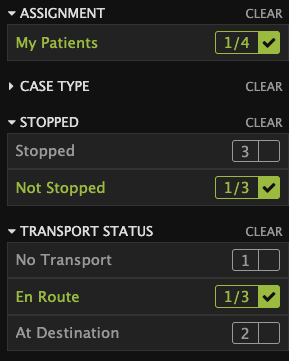
Use the ‘clear’ option next to any filter to remove it.
If your job role involves managing inbound EMS patients, the MOA: EMS filter can help limit your dashboard view to only the patient(s) you need to see.
Collapse filters by clicking the filter category name to focus on the filters that are most important to you and reserve screen space for the most used filters. Click the category name again to reveal the filter options.
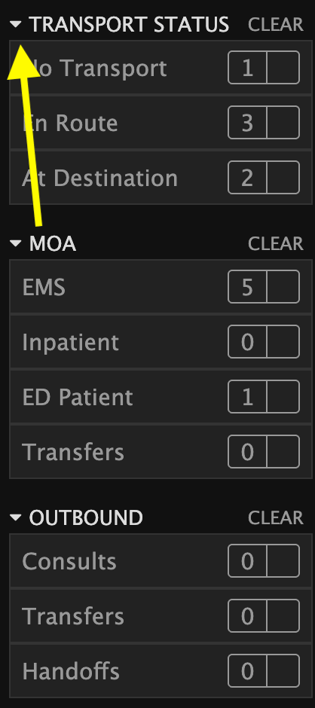
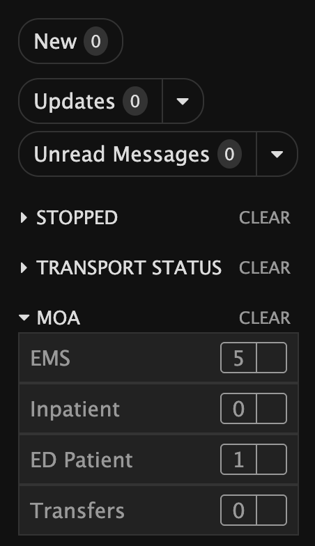
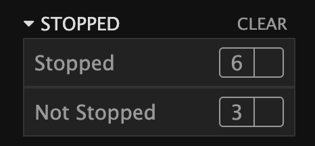
The Stopped Cases filter defaults to 'Not Stopped,' which limits the view to only active patient channels.
Created Date Filter defaults to created within the last 30 days. The created date filter helps reduce the patient list by displaying only patients created within the selected time period.
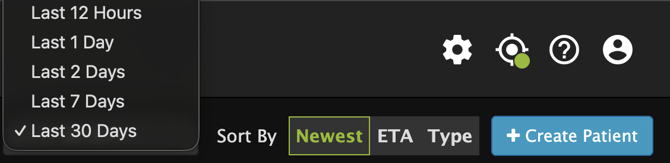
The patient list allows sorting by ETA, Type, and Newest. Note that new patients sorted by creation time will appear at the top of the list by default.

EMS Users
By default, EMS Admins can see all patients, while EMS Users are restricted to viewing only their patients. To modify a user’s access levels, review Editing Account Details.
Patients can be filtered by Assignment for users with all patient rights, case Type, Case Stopped, EMS Disposition, Transport Status, Triage Condition, Test Status, and create date. Additionally, patients can be filtered to indicate any patients with Updates or Unread Messages.
The Updates indicator shows the number of patients with updates that the current logged in user has not seen. When clicking on the indicator, it displays green and filters the patient list down to show only the patients with updates.
When a patient has an update, the patient details (“...”) button in the corresponding patient row appears with a red badge.
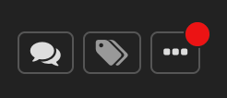
Patient updates reflected here include changes such as the addition of new Images, ECGs, Audio Clips, as well as edits to items like ETA, Room Number, Cath Lab Ready.
The “Unread Messages” indicator shows the number of patients that have messages that the current logged in user has not read. Click the indicator to filter the list of patients to display only those with unread messages.
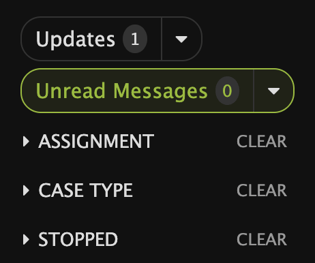
When a patient has a message that you have not read, the Conversation icon appears with a red badge.
Filter by Case Type
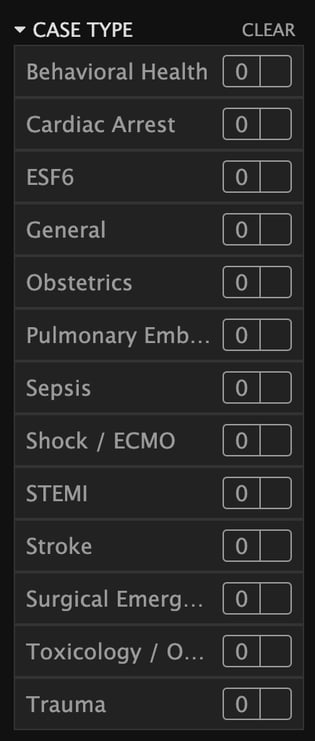
Filters can be mixed and matched to find the exact results of patients you need.
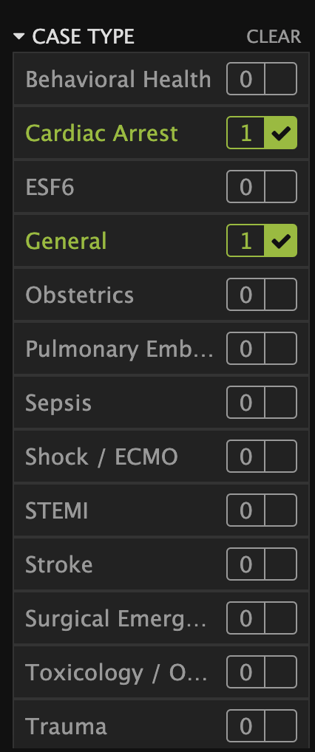
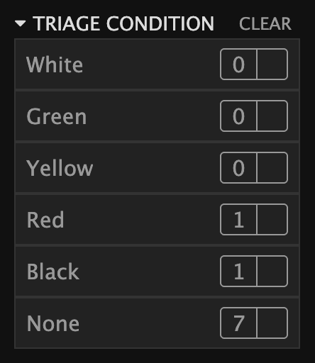
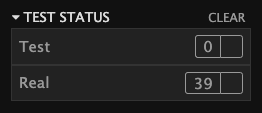
Use the EMS Disposition and Transport Status filters to view patients by their current status, such as Transport, Handoff, No Transport, En Route, or At Destination.
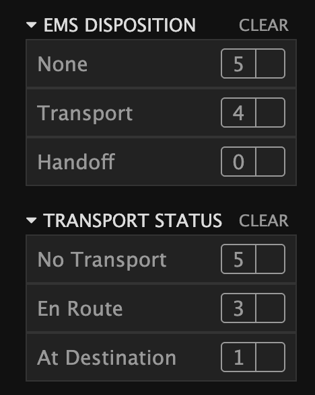
Click the “CLEAR” option next to any selected filter to remove the filter.
Collapse filters by clicking the filter category name to focus on the filters that are most important to you and reserve screen space for the most used filters. Click the category name again to reveal the filter options.
The Stopped Cases filter defaults to 'Not Stopped,' which limits the view to only active patient channels.
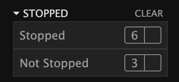
Create Date Filter defaults to created within the last 30 days. The create date filter helps reduce the patient list by displaying only patients created within the selected time period.
Note: The selection in the Created Date field persists across application logins.
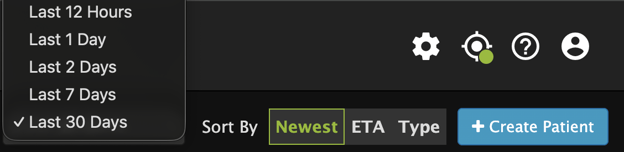
The sort options in the upper right allow you to sort patients by Newest, ETA, and Type. When the list is sorted by the Newest option, the most recently created patients will appear at the top.
