
- Creating a Narrative / Note on a New Patient
- Adding a Narrative / Note to a Patient
- Editing Narrative / Notes
- Creating Narrative Instructions
- Chief Complaint
- Viewing Narrative / Note & Chief Complaint in Web
- Extracting Narrative / Notes & Chief Complaint to discrete data
Creating a Narrative / Note on a New Patient
The Narrative / Notes card provides teams a dedicated place to add more detailed patient information, such as medical history, radio report information, vitals, labs, patient condition, etc. For faster entry, Voice-to-Text is the recommended method.Narrative / Notes are mandatory when creating a patient channel in Pulsara, except during an incident, for all patient types.
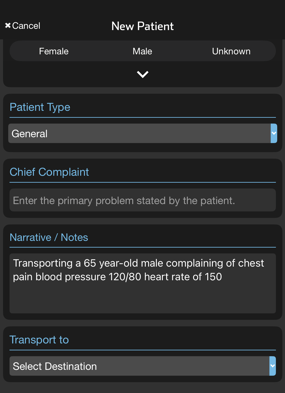
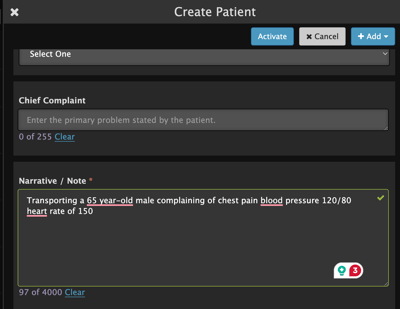
To add a Narrative / Note to the patient channel, tap in the Narrative / Notes field. Use Voice-to-Text or your device keyboard to document the subjective and objective details about the patient encounter.
Note: Narrative / Notes has a 4000-character limit. The information in this field is visible to anyone at any organization that is participating in the patient channel and editable by users from the organization that created the note. As a Multi-Entity user, the Narrative / Note can only be edited from the organization currently being viewed.
Mobile
Web
Adding a Narrative / Note to a Patient
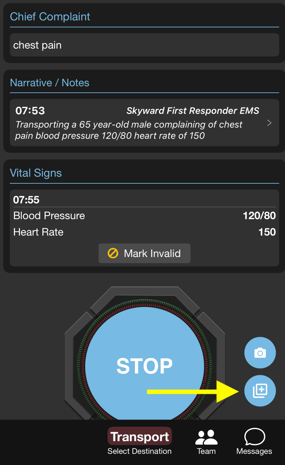
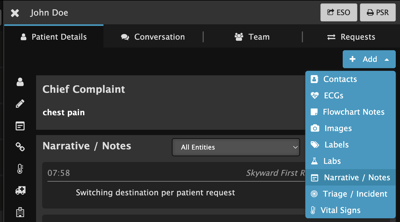
To add a Narrative / Note to an existing patient channel, select the Add Button.
Mobile
Web

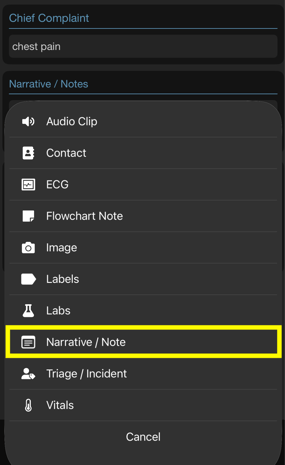
Select Narrative / Note from the pop up menu.
Mobile
Web
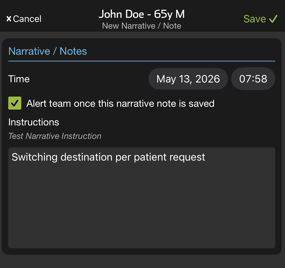
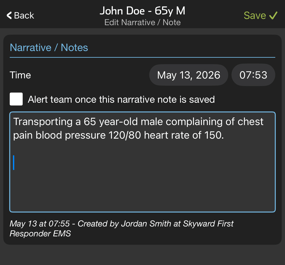
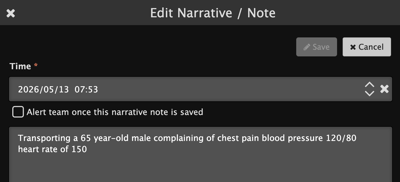
Add the desired edits to the Narrative / Note and select Save. Optionally, select “Alert team once this Narrative / Note is saved.”
Note: Any Narrative Instructions defined by the entity for a specific patient type will appear under instructions.
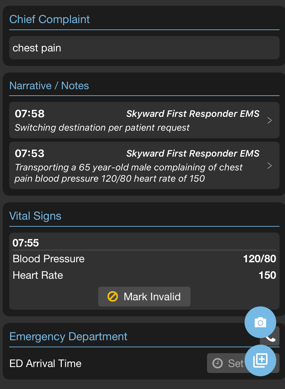
Narrative / Notes will appear newest to oldest in the Narrative / Notes card.
Editing Narrative / Notes
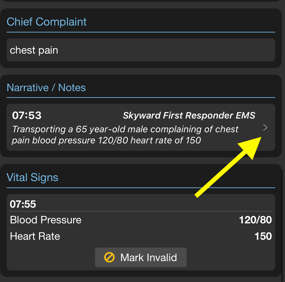
To edit the Narrative / Note, tap the Narrative / Note in question.
Note: The information in this field is visible to anyone at any organization that is participating in the patient channel and editable by users from the organization that created the note. As a Multi-Entity user, the Narrative / Note can only be edited from the organization currently being viewed.
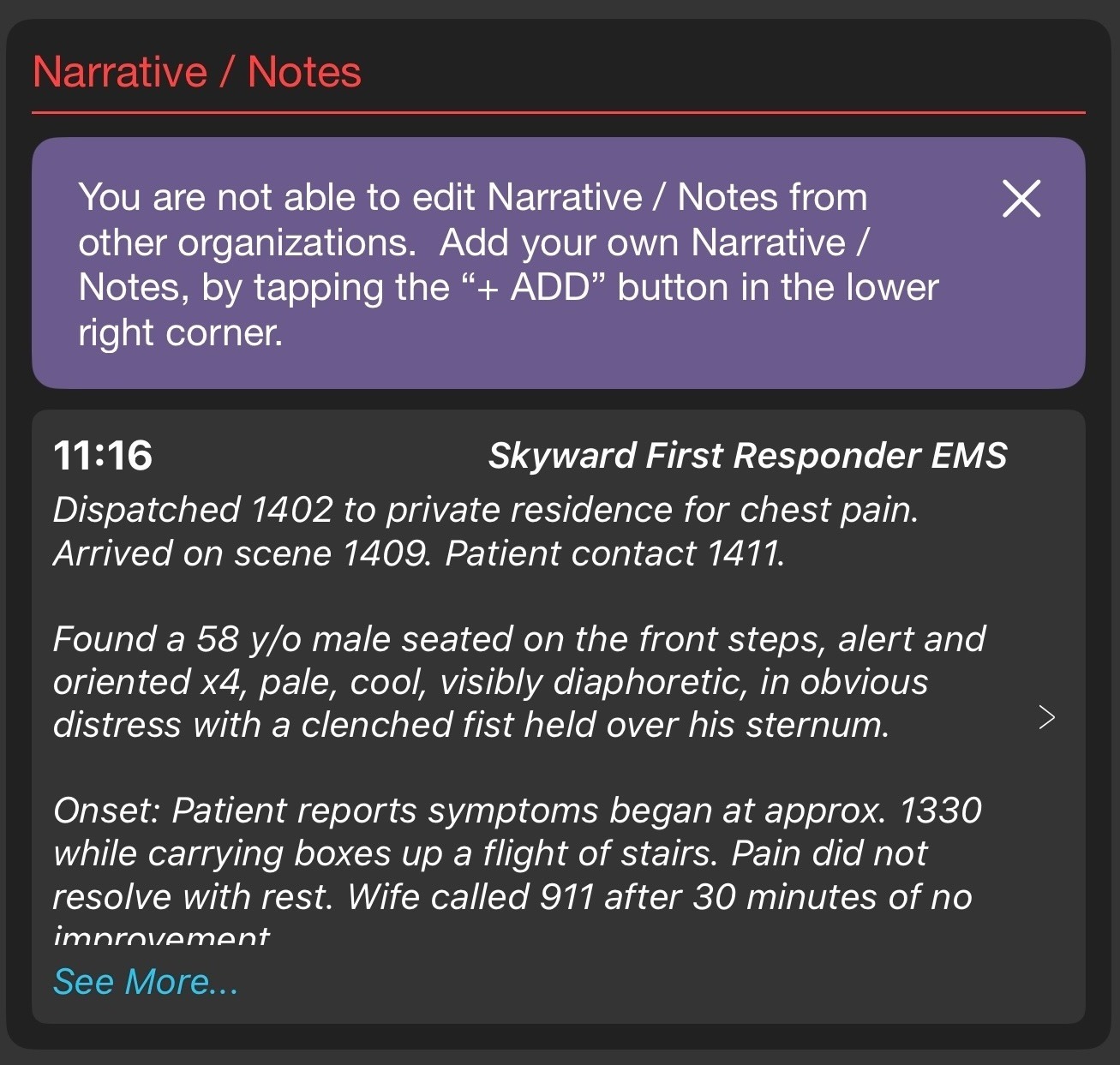
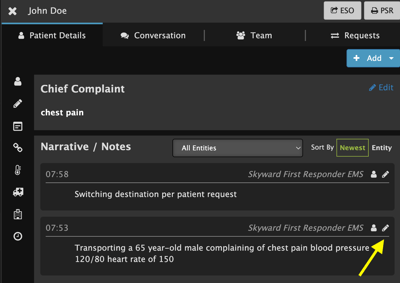
Select the pencil icon to make an edit.
Apply the desired edits to the Narrative / Note and select Save. Optionally, select “Alert team once this Narrative / Note is saved” checkbox.
Mobile
Web
Creating Narrative Instructions
Admins can create unique instructions for each patient type to guide content based on specific workflows by logging into Pulsara MANAGER on Web and selecting Narrative Instructions under EMS or Hospital.
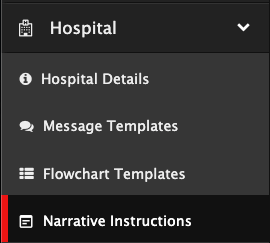
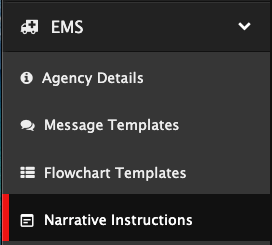
Select +Instruction

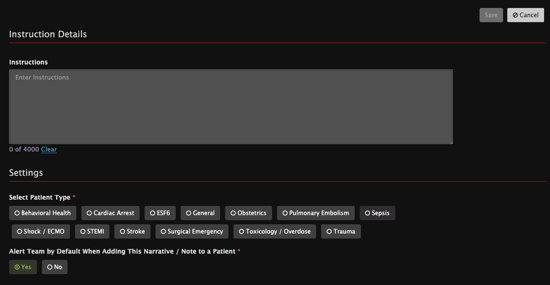
Enter the Narrative Instruction in the Instructions box. Then select the Patient Type these instructions pertain to. Selecting Yes to the "Alert Team by default" ensures the Alert Team checkbox is checked when a Narrative / Note is added to a patient; however, users retain the ability to uncheck this field during the note addition process if preferred.
- Note: Each patient type is limited to one Narrative Instruction.
- Narrative Instructions enable Tappable Links: URLs and phone numbers will be tappable in Mobile, but the same items manually typed into a team message will not be tappable.
Example Narrative Instruction
STEMI
- CHIEF COMPLAINT
- NARRATIVE (onset, quality, cardiac history, anticoagulants)
- ECG (interpretation)
- KEY FINDINGS
- VITALS
- INTERVENTIONS (Aspirin, nitro, analgesia, pacing, defibrillation…)
Chief Complaint
The Chief Complaint field provides teams a dedicated place to capture the patient’s brief primary concern, such as “abdominal pain,” “headache,” or “chest pain.”
Note: Chief Complaint has a 255 Character limit. Any entity on the patient channel is able to view and update the Chief Complaint.
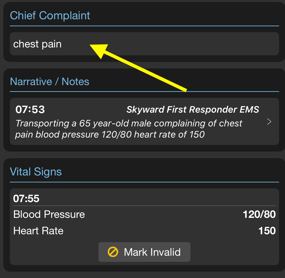
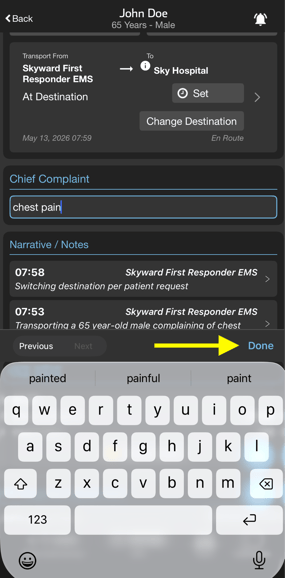
To edit the Chief Complaint, tap into the Chief Complaint field, edit the text, and select Done.
Viewing Narrative / Note & Chief Complaint in Web
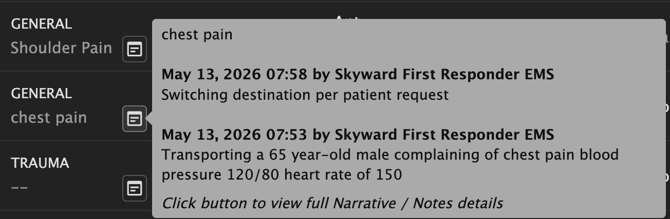
To view the Narrative / Note and Chief Complaint in Web, hover over the Narrative / Note icon
Clicking the icon will navigate to the patient details Narrative / Note section
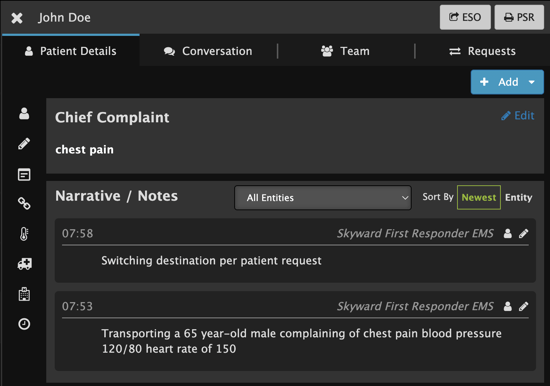
Searching in Pulsara Web will return both Narrative / Note and Chief Complaint.

Extracting Narrative / Notes and Chief Complaint to discrete data
To extract the Narrative / Notes or Chief Complaint to discrete data from, review Pulsara Intelligence: Overview and Customer Guide.