
Managing Organization Users (Admin Actions)
Updating Your Personal Profile (Mobile Actions)
Managing Organization Users (Admin Actions)
Log in and navigate to Users -> Manage Users

By default, all users at your organization will appear.
Use Search (Name, Username or Email) or Filter (Status, Role or Facility) options to find the necessary account. Search options are not case sensitive and will return both partial and exact match results.
Note: One screen length of users is displayed at a time. To narrow results beyond the initially displayed list, apply additional filters.

Multi-Facility Administrators have the ability to filter search results by facility.
To display users at specific entities, first click Select. Then choose the desired entities by checking the corresponding boxes and confirming the number of selected entities.
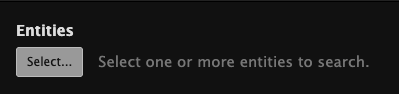
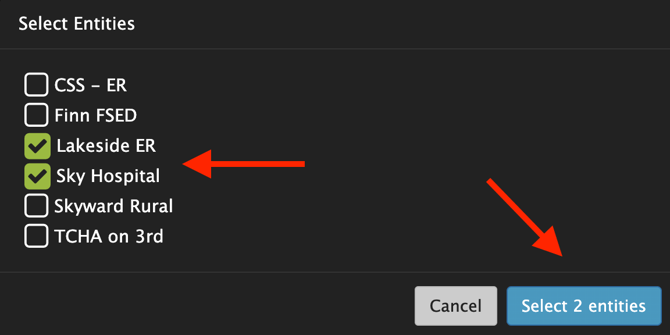
Facilities that are currently selected will be shown.

Click search to display users at those entities.

Editing User Details
To edit a user’s account details, select the eye icon in the account details row.

Pulsara users can update their own Name, Email, and Phone number within the Pulsara Mobile application. However, only administrators have the ability to change usernames and roles.
To update a user’s account information or role, select the desired user, then select Edit.

Make changes to the account as needed.
Select Save when complete.

To cancel any changes, select the Cancel button.
Manage User Permissions
To modify a user’s access levels, select Permissions. A Hospital Admin can enable the following options
- Can Manage Keys: (Admin users only) allows admins to create Pulsara API Tokens
- Can Update ED Availability: Allows the users to Set Availability status within the Web application
- Can only view My Patients: Restricts the user to seeing only their assigned patients. (By default, all hospital users see all patients)


EMS Admin Permissions:
To manage a user’s access, select Permissions. An EMS Admin can enable or toggle the following:
- Can Manage Keys: (Admin users only) allows admins to create Pulsara API Tokens
- Can only view My Patients: Restricts the user to seeing only their assigned patients.
- Note: By default, EMS Admins can see all patients, while EMS Users are restricted to viewing only their patients.


Disable and Re-Enable Users
To disable or re-enable users, review User Management.
Updating Your Personal Profile (Mobile Actions)
In Pulsara Mobile, navigate to the three bars in the upper left-hand corner and tap Settings


To Update Profile Details: Tap Edit Account to change your Name, Email, or Phone Number. Tap Save.

To Change your PIN: Tap Change PIN, enter your new PIN, and tap Save.
Note: PINs can only be updated in the Mobile App
